
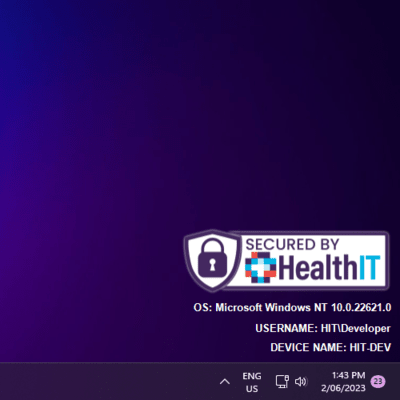
TED is a command-line tool, inspired by the classic BGInfo, designed for MSPs to be able to display images and text programmatically on the desktop, positioned above the wallpaper but below the icons. It utilizes the bottom right corner of the primary monitor as the drawing area.
TED runs as a lightweight desktop process so it can repaint itself when Windows redraws the desktop. This avoids modifying or replacing the user's wallpaper.
- Display images and text on the desktop
- Ability to specify different images based on perceived desktop luminance. Font color also adjusts between black or white based on perceived desktop luminance.
- Substitute system values in the text with special tokens
- DPI aware
- Persistent desktop overlay that redraws itself without replacing the user's wallpaper
- Customizable with a variety of command-line switches
- Designed for deployment via an RMM
- Windows 8 or later
In remote desktop environments, Explorer and GPU composition behavior can still vary between Windows versions and client settings.
Download the latest compiled binary for TED. You can find the latest downloads for TED below - this ensures your RMM always grabs the latest version!
We recommend managing and deploying TED via your RMM.
TED supports the following switches:
-ior-image: Path or URL to the image to be drawn.-dior-darkimage: Path or URL to the image to be drawn when the perceived desktop luminance is light.-lior-lightimage: Path or URL to the image to be drawn when the perceived desktop luminance is dark.-for-font: Name of the font to use. Default is Arial.-fsor-fontsize: Font size in pixels. Default is 8.-lsor-linespacing: Space between text lines in pixels. Default is 8.-hpor-hpad: Horizontal padding amount in pixels. Default is 10.-vpor-vpad: Vertical padding amount in pixels. Default is 10.-wor-width: The width of the image when drawn, in pixels. By default this is -1.- A value of -1 disables fixed width scaling and instead uses automatic image scaling to resize (respecting aspect ratio) the image to the size of the longest line of text.
-aor-align: How the text should be aligned. Default is Left. Accepted values are Left, Center or Right. Not case-sensitive.-line: The text to be drawn. This switch can be repeated multiple times to draw multiple lines of text. Lines can contain system tokens and inline rich text formatting, both documented below. If no lines are provided, TED renders the following by default:- "USERNAME: @userName"
- "MACHINE NAME: @machineName"
- "OS: @osName"
Tokens can be used inside any -line value. TED substitutes them at runtime with values from the current Windows session, machine identity, operating system, and primary network connection.
| Token | Runtime value |
|---|---|
@userName |
Current Windows user name |
@machineName |
Computer name |
@machineSerial |
Device serial number |
@manufacturer |
Device manufacturer |
@model |
Device model |
@ipAddress |
Primary IP address |
@macAddress |
Primary MAC address |
@osName |
Operating system name |
@osVersion |
Operating system version |
Lines also support a small set of inline rich text tags:
| Tag | Example |
|---|---|
| Bold | <b>text</b> |
| Italic | <i>text</i> |
| Underline | <u>text</u> |
| Named color | <color=green>text</color> |
| Hex color | <color=#800080>text</color> |
Untagged text uses TED's luminance-based black or white text color. Tagged colors are drawn as specified.
We've provided an example PowerShell script to make deploying with your RMM quick and easy. You can find the script here.
TED is a CLI tool and can be called like so:
ted -di path/to/dark_image.png -li path/to/light_image.png -f Arial -fs 14 -ls 5 -hp 10 -vp 10 -line "Hello, @userName!" -line "You are using @osName on @machineName."Inline rich text formatting can be used inside lines:
ted -line "<color=purple>OS: </color><color=green>@osName</color>" -line "<b><u>Device:</u></b> <i>@machineName</i>"In terms of real world usage, we've found this to be a fantastic tool for helping clients quickly identify key information about their machine whilst on the phone with them.

Adding tokens to the text system requires editing the source and compiling your own binary.
Tokens are stored in TokenLookup inside Tokenizer.cs.
Add your token as the dictionary key and the substituted value provider as the value, then compile and use your new token in a -line value.
Contributions to TED are welcome! If you find any issues or have suggestions for improvement, please feel free to open an issue or submit a pull request.
❤️ the project and would like to show your support? Please consider donating to one of our favourite charities:
Please let us know if you have donated because of this project!
This project is licensed under the GNU General Public License v3.0
For any inquiries or further information, please contact the developers: